- Can I play my music without an internet connection?
- Yes, locally imported tracks can play offline. Import them first: Wi-Fi transfer needs a network connection, and cloud-backed files may need to download before import.
- How do I transfer music from my computer to my iPhone?
- Connect your computer and iPhone to the same Wi-Fi network, open Wi-Fi transfer in the app, and follow the computer link and code shown there. Allow Local Network access when prompted.
- Can I import audio from Files or iCloud?
- Choose Files and iCloud in the app's import screen, then select your audio files. Files stored with a cloud provider need to be available to the device before they can be imported.
- Does the music player have an equalizer?
- Yes. The built-in equalizer includes presets and adjustable bands for shaping playback. Some EQ options require Pro.
- Which platform is this app for?
- This is the iOS app for iPhone. Check the App Store listing linked on this page for current device compatibility.
- Which audio files can I import?
- Files and Wi-Fi import accept common types including MP3, M4A, AAC, WAV and FLAC. Playback compatibility depends on the file’s encoding and protection; protected streaming downloads may not be available to import or play.
- Can I edit song details or see lyrics?
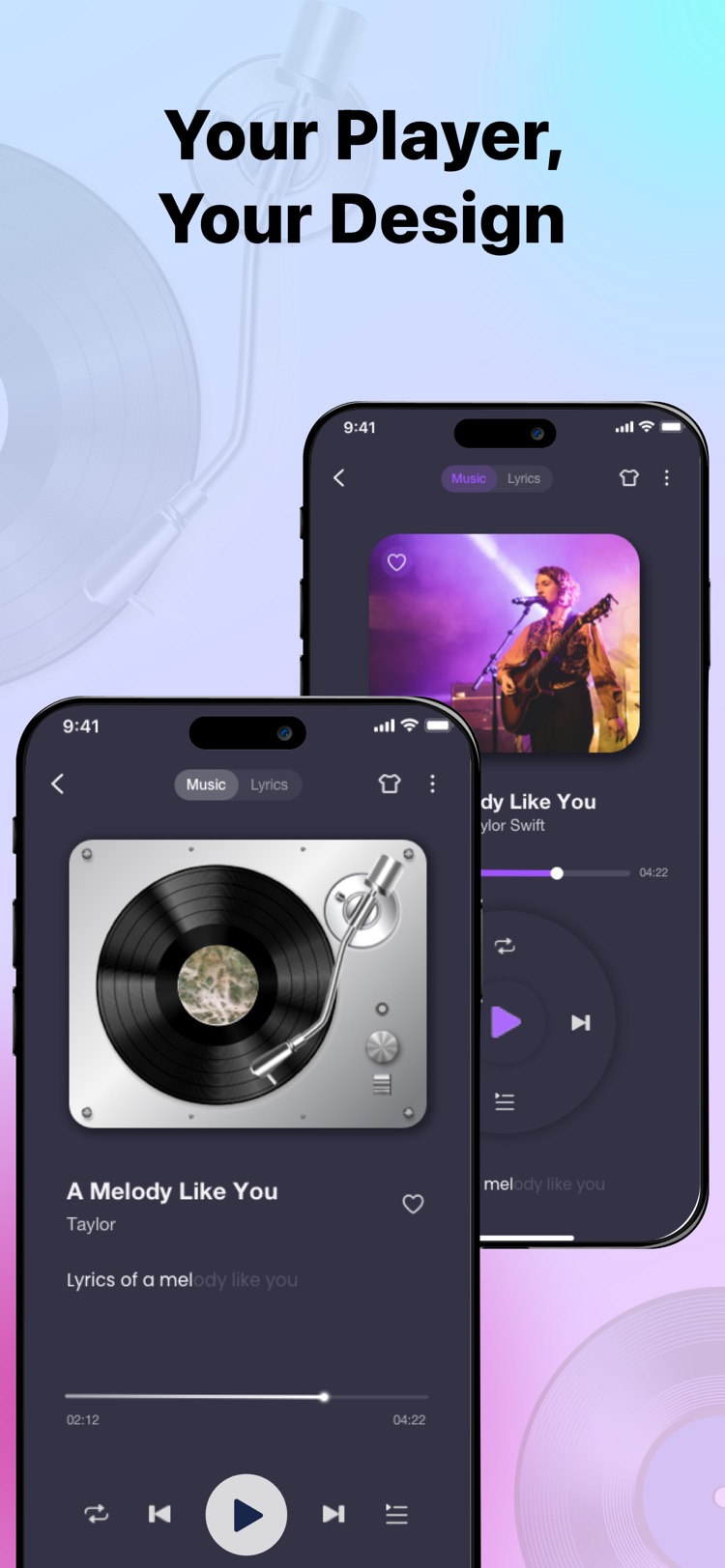
- Edit song details and artwork in your app library. The player can also display lyrics already included with a track. Lyrics availability depends on the audio file.