

How to transfer MP3s from a Windows PC to an iPhone
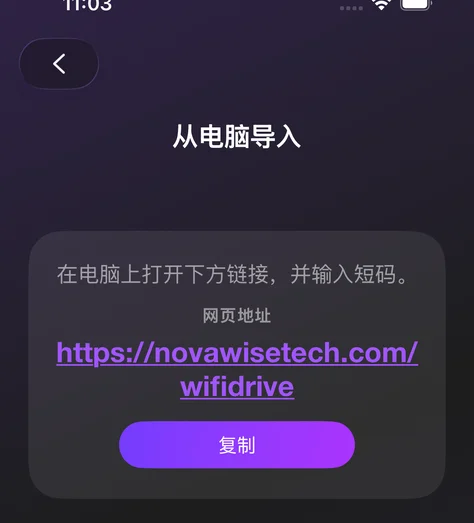
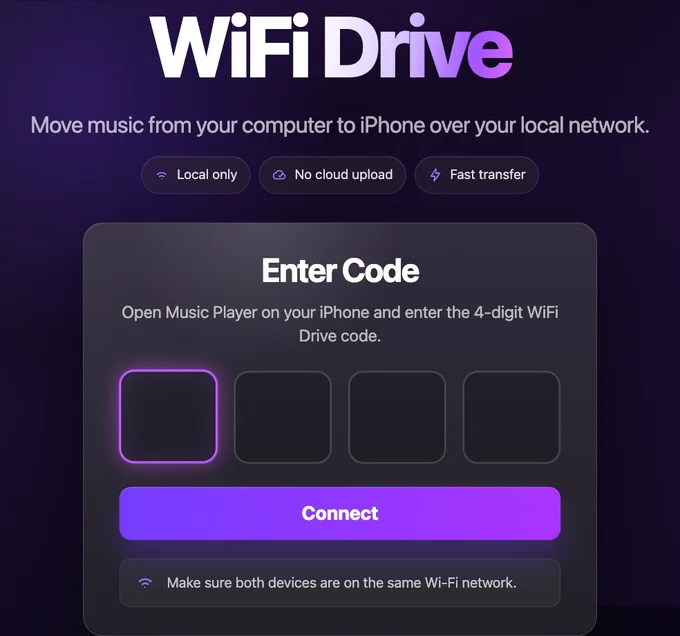
Connect your computer and iPhone to the same Wi-Fi network. Open Wi-Fi transfer in Music Player on your iPhone, then enter its four-digit code on your computer to import your songs.
Transfer music over Wi-Fi
Open Wi-Fi transfer on iPhone
In Music Player, open Import and choose the option to import from your computer. Allow Local Network access when prompted, and keep this screen open.
Pair the computer
On the same Wi-Fi network, open the pairing page on your computer. Type the four digits currently displayed on your iPhone.
Add your audio files
Select your MP3 files in the computer’s transfer screen and wait for the uploads to finish. Open the Music Player library on your iPhone to play them.
Common transfer questions
Why can’t my computer connect?
Check that both devices are on the same Wi-Fi network and Music Player has Local Network access in iPhone Settings. Reopen the transfer screen and use the four digits it now shows. A guest network may prevent devices from reaching each other.
Where do my songs go?
Open the library inside Music Player on your iPhone. Imported local tracks are available for offline listening.
Which files can I import?
Common formats include MP3, M4A, AAC, WAV and FLAC. Playback depends on the encoding. Tracks protected by a streaming service may not play.
Get Music Player on your iPhone
Import your own audio files and listen to them offline in your Music Player library.